Best AI Subtitle Generators for TikTok & Instagram Reels (2026)
By Rachit Bhatia — 8 min read
August 22, 2026
TikTok and Instagram Reels aren’t a smaller version of YouTube. They’re watched differently, sound off, thumb hovering over the scroll, and that changes what a caption needs to do. A subtitle generator that’s great for a 20-minute YouTube video isn’t automatically great here.
Why short-form captioning is a different problem
Three things matter for vertical video that barely come up for long-form:
Captions have to be burned in. TikTok’s native caption support is limited, and Reels doesn’t support uploading a separate subtitle file the way YouTube does. If you want text visible by default, it has to be baked into the video before you post, not a toggle-able file sitting next to it.
Reading speed is tighter. There’s a real industry number for this: Netflix targets 17 characters per second for adult content, and BBC runs 15-17. A six-second shot gives you roughly 100 characters to work with at that pace, about two and a half lines. Go faster and people can’t finish reading before the line changes. Short-form clips move quickly by design, so this budget gets tight fast, and most AI caption tools never expose the number, they just guess.
Word-level timing beats sentence-level. Highlighting one word at a time as it’s spoken, instead of dropping a full sentence on screen and holding it, is most of why animated captions perform the way they do. It pulls the eye along with the audio instead of asking the viewer to read ahead or fall behind. Tools built on newer speech models generally nail this; tools running older or in-house transcription engines tend to time whole phrases at once, which reads flatter on a fast-moving clip.
None of this is marketing fluff. It’s the actual mechanics behind why a caption either gets read or gets scrolled past.
Where to actually put the text
Vertical video has dead zones a caption generator won’t know about unless it’s built for the platform. TikTok reserves space along the right edge for the like, comment, and share icons, and a strip near the bottom for the caption/username. Reels does the same on the right, plus its own bottom UI for the audio credit and description. A caption sitting in the default center-bottom position on either platform is routinely covered by the app’s own interface, not by anything you did wrong.
The practical fix is a tool that lets you move the caption block vertically before export, not just pick a font. Most general-purpose editors default to one fixed position and expect you to eyeball it. Purpose-built short-form tools tend to get this right by default, since it’s the one thing their whole product is supposed to solve.
Quick comparison
| Tool | Free tier | Watermark | Style library | Languages | Best for |
|---|---|---|---|---|---|
| CentClip | 5 free minutes, then 5¢/min | Never | curated | 50+ | No subscription |
| Submagic | A handful of exports | Yes, on free plan | Large, trend-driven | Not specified | Frequent posting, style variety |
| CapCut | Unlimited | No | Medium, TikTok-native | 20+ | Free, testing the format |
| VEED | ~10 min | Yes, on free plan | Large | 100+ | Already editing full videos there |
| Kapwing | ~10 min | Yes, on free plan | Medium | Not specified | Teams, shared brand kit |
| Zubtitle | 1 video/month | Yes | Small, short-form focused | Not specified | Cheaper Submagic alternative |
Free-tier and pricing details shift often — confirm on each tool’s current pricing page before committing a workflow to one.
The tools, ranked
1. CentClip
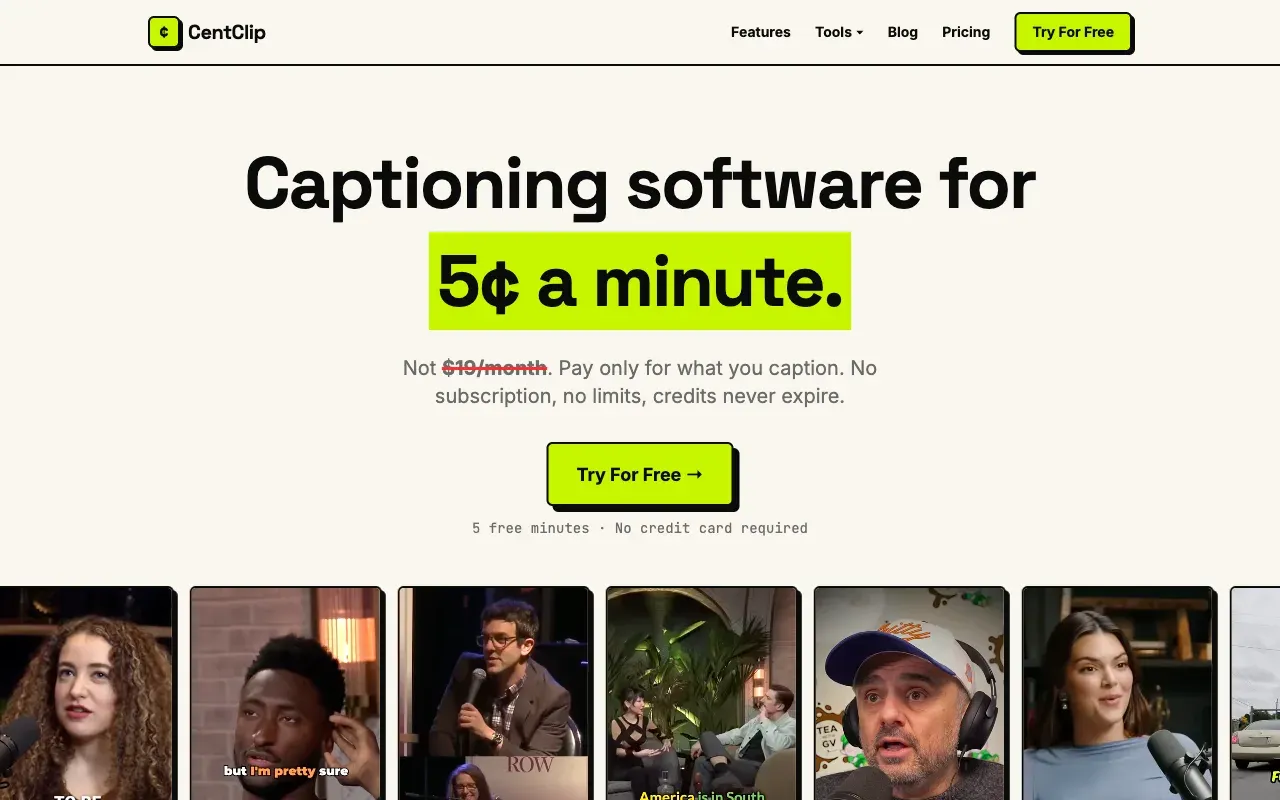
CentClip handles the short-form basics correctly: word-by-word animated captions, a style picker, and exports that never crop or reframe your video, whatever aspect ratio you uploaded comes back the same. For Reels specifically, you can set the caption’s vertical position so it clears Instagram’s own UI elements instead of sitting underneath the like button. Every export is burned in and ready to post directly, no separate SRT step needed unless you want one too. Pricing is 5 cents a minute with 5 free minutes to start, no subscription, and no watermark at any tier, free or paid.
Language support runs 50+, which covers the large majority of what short-form creators caption in. Credits don’t expire, so posting three times one week and nothing the next doesn’t cost you anything extra, unlike a monthly plan sized for your busiest week.
The honest limitation: CentClip’s style library is smaller than Submagic’s. If you want dozens of trending template variations to flip through, you’ll find more choice there. If you want clean, accurate, correctly-positioned captions without paying monthly for a tool you use in bursts, CentClip does the job.
2. Submagic
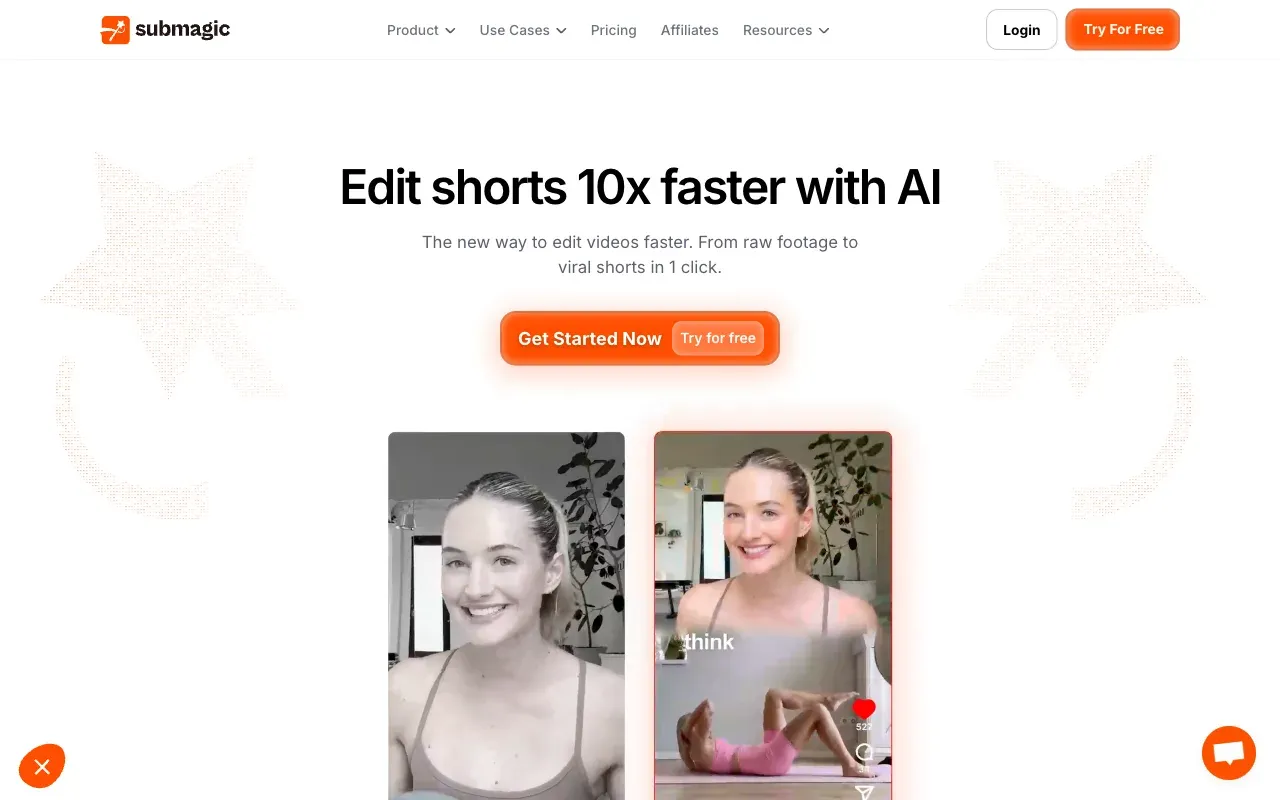
Submagic is purpose-built for exactly this use case, and it shows. The template library is deep, styles modeled on formats that already work on the platform, word-by-word animation, automatic emoji insertion, even B-roll suggestions pulled in automatically. If styling variety is what you’re optimizing for, this is the strongest option here, and it’s the one most often named by creators specifically for TikTok and Reels work.
The tradeoff is accuracy and price. Transcription quality runs roughly 88-93% by independent testing, a few points behind dedicated transcription-first tools, since the product is built around styling, not word-error-rate. Plans run $15-49/month depending on volume and seats, and the free tier is a handful of exports before it asks you to subscribe, worth knowing if your posting volume is irregular rather than steady.
3. CapCut
CapCut is free, TikTok-native, and genuinely capable: unlimited use, no watermark, styling presets that already look like they belong on the platform, because for a lot of creators they were designed by watching what performs on it. Auto-captions sit inside a broader free editor, so trims, music, and basic effects are available in the same app without a second subscription. For anyone testing short-form content before committing budget to a paid tool, there’s no real reason to look elsewhere first.
Two things worth knowing before you do: it’s ByteDance-owned, which matters if you’re captioning on behalf of a client, employer, or anyone with data-handling requirements, and language support (a little over 20) is narrower than most paid competitors. Neither is disqualifying for a solo creator posting in English. Both are worth a second thought for anyone else, particularly agencies or in-house teams that already have a vendor-review process for this kind of thing.
4. VEED
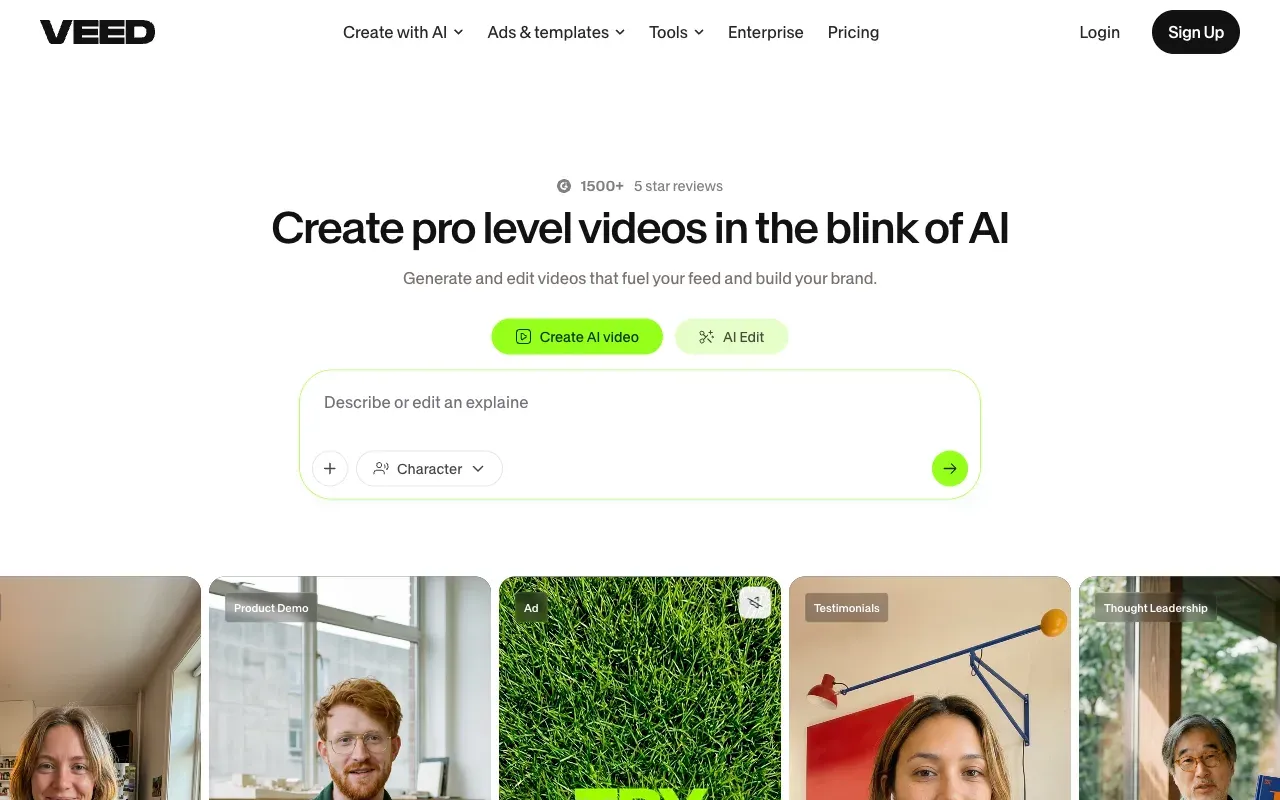
VEED’s dynamic captions animate as you speak and support a genuinely large style library, plus Brand Kit tools if you’re captioning for a business account and want consistent fonts and colors across every post. It’s a full browser editor, not a captions-only tool, which is worth it if you’re already editing full videos there, and language support is among the widest on this list at 100+.
Free tier caps out around 10 minutes and watermarks the export; paid plans start around $12/month and climb from there depending on the tier. If captions are the only reason you’d sign up, you’re paying for an editor you may not otherwise use, and the watermark shows up faster than a caption-only tool’s free tier typically would.
Read the full CentClip vs VEED comparison →
5. Kapwing
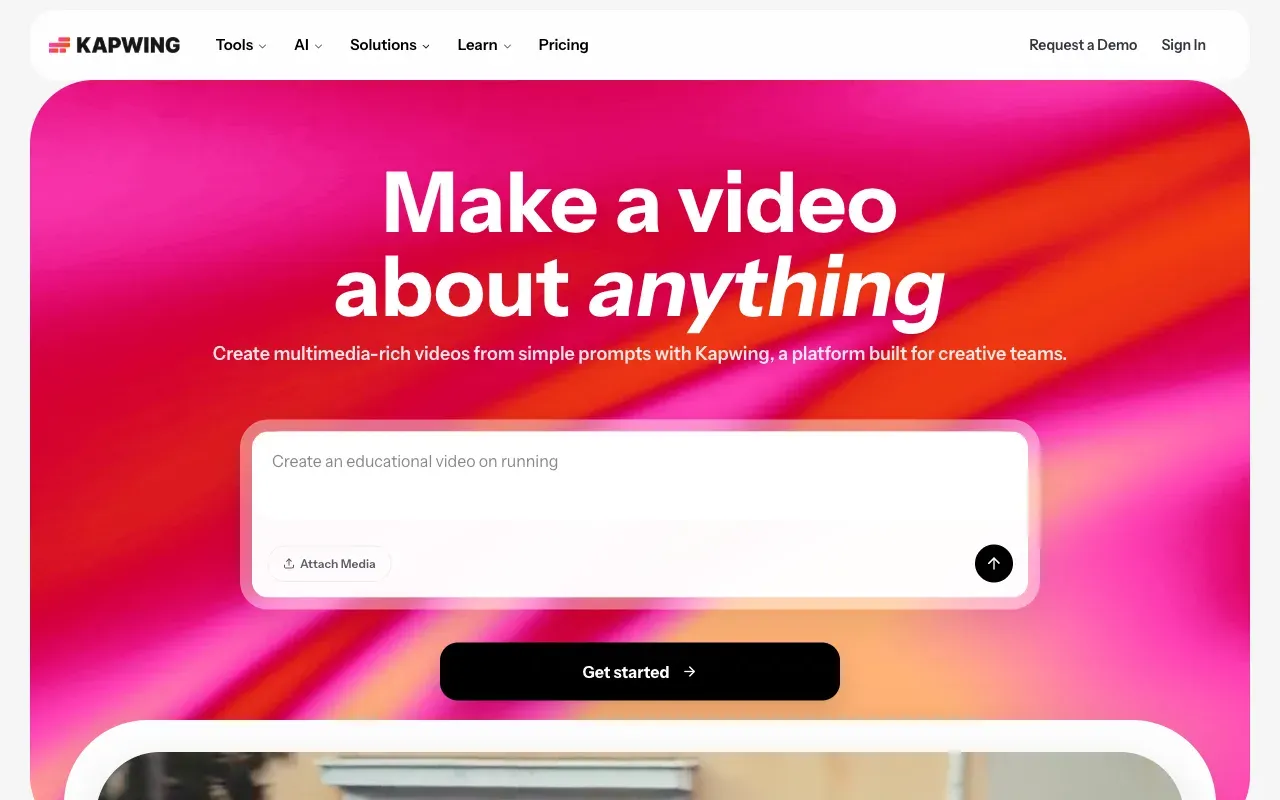
Kapwing’s caption presets are solid and its Brand Kit keeps a team’s styling consistent across multiple creators posting to the same account, which is the actual case for it over a solo-creator tool: teams, not individuals.
Free tier is watermarked with a roughly 10-minute cap; Pro starts around $16/month. Solo creators posting occasionally are paying for collaboration features they won’t touch.
Read the full CentClip vs Kapwing comparison →
6. Zubtitle
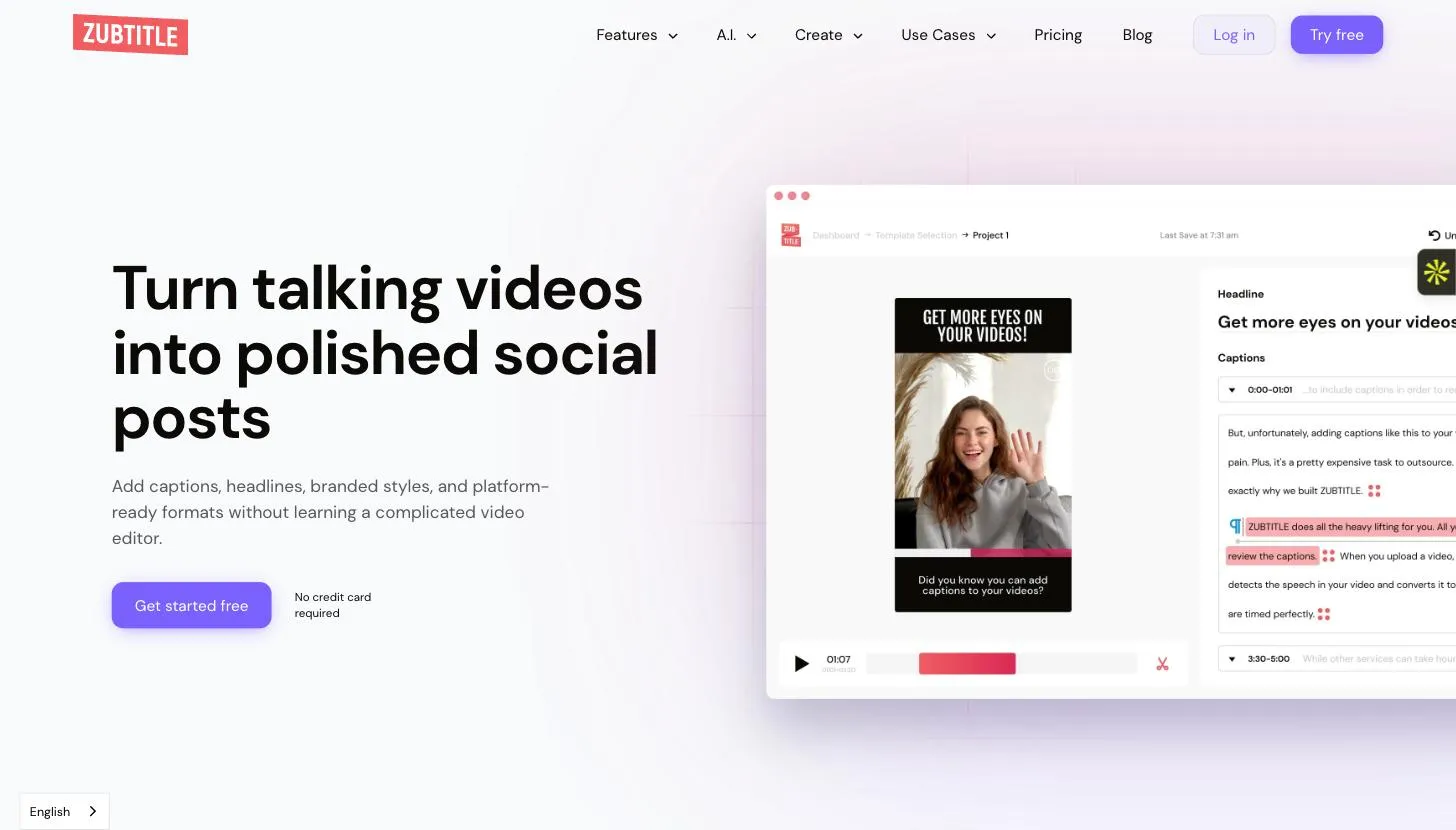
Zubtitle is built specifically for short-form: resizing presets tuned for Instagram and TikTok’s exact dimensions, so there’s less manual setup than a general-purpose editor. The free tier is one watermarked video a month, more of a monthly demo than a workflow, and paid plans start around $19/month.
If you’re already committed to a subscription-based short-form tool and Submagic’s price is the sticking point, this is a cheaper alternative in the same category. It’s not a reason to switch if you’re happy with what you’re using.
Which one to actually use
- You don’t want to pay for a subscription: CentClip. Pay for the minutes you caption.
- You want the deepest style library and post often enough to justify a subscription: Submagic.
- You’re testing short-form content before spending anything: CapCut, no real downside for a solo creator.
- You’re already editing full videos in a browser tool: VEED or Kapwing, captions are close to free at that point since you’re paying for the editor either way.
- You’re a team posting from a shared account: Kapwing’s collaboration features are worth the subscription in a way they aren’t for a solo creator.
Frequently asked questions
Do TikTok and Instagram Reels need burned-in captions, or can I upload a separate SRT file?
Burned-in. TikTok's native caption support is limited and inconsistent, and Reels doesn't support uploading a separate caption file at all for most post types. If you want captions visible by default on either platform, they need to be baked into the video pixels before you upload.
What's CPS and why does it matter for short-form captions?
Characters per second, a measure of how fast text needs to be read to keep up with a caption's on-screen time. Netflix targets 17 CPS for adult content; go much faster and viewers can't finish reading before the line changes. Short-form video moves fast, so this matters more here than on a slower-paced YouTube video, and most AI caption tools don't expose this number at all, they just guess at reasonable timing.
Why do word-by-word animated captions work better on TikTok than plain subtitles?
Attention, mostly. A static line of text sitting at the bottom of the screen is easy to scroll past. Text that highlights one word at a time as it's spoken pulls the eye along with the audio, which is why nearly every viral short-form format uses it. It's a genuine engagement mechanic, not just a style choice.
Will captioning tools crop or reformat my 9:16 video?
They shouldn't, but check before you commit to one. Some editors default to a specific export size and will letterbox or crop vertical footage that doesn't match. CentClip exports at whatever size you uploaded, no reframing.
Is CapCut good enough for TikTok captions, or do I need something else?
For a lot of creators, CapCut alone is genuinely enough: free, TikTok-native styling, no watermark. The tradeoff is that it's ByteDance-owned, which is worth knowing if you're captioning for a client, a company, or anyone with data-handling requirements. If that's not a concern for you, there's no strong reason to pay for something else just for captions.
Where should captions sit on a TikTok or Reels video?
Above the platform's own UI, not underneath it. Both apps reserve the right edge for like/comment/share icons and a strip near the bottom for captions, audio credit, or the username. The default center-bottom position on a lot of general-purpose editors gets covered by that UI, so look for a tool that lets you move the caption block before export.
Do TikTok and Reels caption tools transcribe as accurately as YouTube tools?
It varies more by tool than by platform. Style-focused short-form tools like Submagic trade a few accuracy points for their template libraries; accuracy-focused tools built on newer speech models, CentClip included, don't make that tradeoff. Check a tool's actual word-error-rate claims rather than assuming short-form tools are automatically less accurate.